
Every growing website faces technical issues, but few are as damaging to user experience and search visibility as broken links. If you run a blog or a business site, knowing how to find broken links in WordPress is a mandatory skill. Broken links, commonly known as 404 errors, waste your search engine crawl budget, dilute link equity, and create a frustrating experience for potential customers.
In this comprehensive technical guide, you will learn why broken links occur, how to detect them using free tools and plugins, and the exact steps on how to fix broken links in WordPress safely without slowing down your website performance.
What Are Broken Links and Why Do They Matter for SEO?
A broken link—often referred to as a dead link—is a hyperlink on your website that points to a page, image, or document that no longer exists on the server. When a user clicks on such a link, the web server responds with a standard HTTP 404 Not Found status code.
Common Causes of Broken Links in WordPress
- URL Structure Changes: Renaming a page slug or altering the permalink structure without setting up redirects.
- Deleted Content: Deleting old blog posts or products without redirecting their URLs.
- Typographical Errors: Misspelling internal or external URLs inside the post editor.
- Domain Expiration: External websites you referenced in your articles going offline permanently.
How Broken Links Negatively Impact SEO
- Wasted Crawl Budget: Search engine crawlers (such as Googlebot) have a finite amount of resources dedicated to crawling your site. If bots spend time crawling 404 pages, newly published articles take longer to get indexed.
- Loss of Page Authority (Link Juice): If an established high-authority page contains a broken link, the link equity cannot flow to other internal pages, limiting your site’s overall ranking potential.
- High Bounce Rates: Visitors landing on dead links leave immediately, sending negative behavioral signals to search engines.
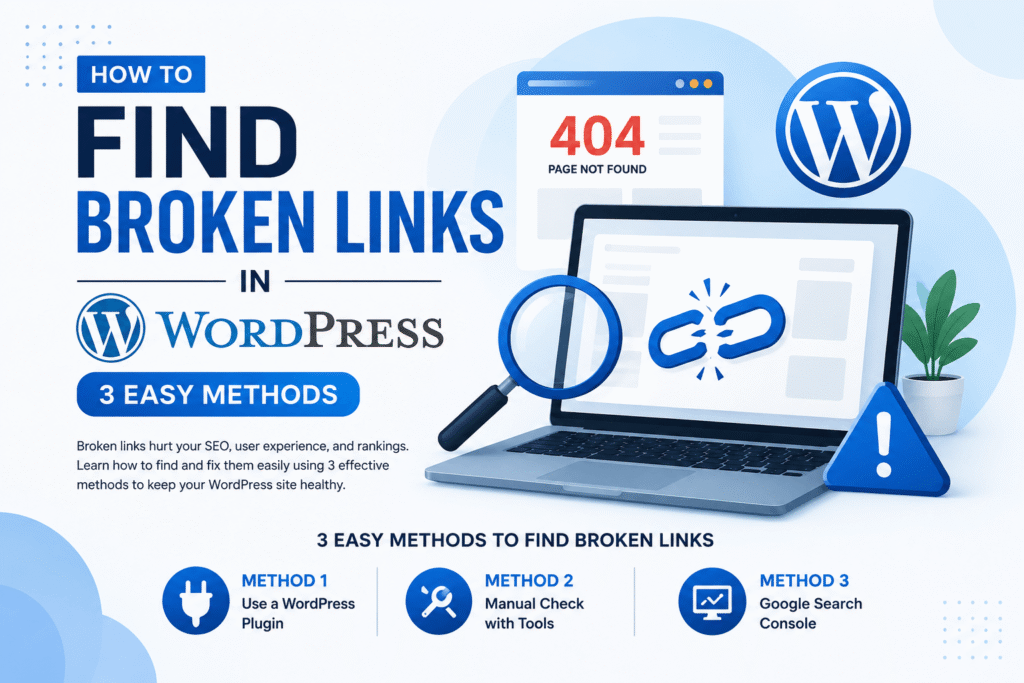
How to Find Broken Links in WordPress: 3 Reliable Methods
Detecting dead links across dozens or hundreds of published pages manually is inefficient. Knowing exactly how to check for broken links in WordPress allows website owners to spot damaged URLs before they impact organic rankings. When you consistently audit your website to find 404 errors in WordPress, you prevent broken hyperlinks from harming user trust, increasing bounce rates, and draining search crawler resources. Whether you manage a small niche blog or a large business website, using automated tools makes the detection workflow fast and seamless. Below, we break down three battle-tested methods you can use to scan your site, detect hidden dead links across your entire WordPress installation, and keep your technical on-page SEO optimized without causing server overload.
Method 1: Use Google Search Console (Zero Server Load)
Google Search Console (GSC) is the most reliable, free platform to discover the exact broken pages that search engine bots encountered while crawling your domain.
- Log into your Google Search Console dashboard.
- Under the left navigation panel, click on Indexing > Pages.
- Scroll down to the Why pages aren’t indexed table.
- Locate and click on Not found (404) or Soft 404.
- GSC will display an exhaustive list of affected URLs along with the date they were first detected.
- Click on any listed URL and select Inspect URL to see which internal pages link to that broken URL.
Using Google Search Console ensures you do not use any server memory or database resources on your hosting plan.
Method 2: Use Screaming Frog SEO Spider & Cloud Scanners
If you want an immediate, deep technical crawl of all your on-page elements, desktop software and cloud-based auditing tools provide instant diagnostics. Instead of relying solely on server logs, using a third-party scanner acts like an external broken link checker for wordpress that examines every published hyperlink across your posts, media attachments, and navigation menus. These tools simulate search engine crawlers to pinpoint exact response codes, identifying 404 client errors alongside the specific anchor text used. This gives you actionable data to resolve broken URLs without adding unnecessary resource overhead to your live web hosting environment.
Using Screaming Frog SEO Spider
- Download and open the free version of Screaming Frog SEO Spider (crawls up to 500 URLs free).
- Enter your WordPress website domain into the top search bar and click Start.
- After the crawl completes, switch to the Response Codes tab.
- Filter by Client Error (4xx).
- Highlight any 404 URL, then look at the Inlinks tab at the bottom to see the exact posts where the broken link is embedded.
Alternative Free Cloud Tools
- Ahrefs Webmaster Tools / Broken Link Checker: Scans your website externally and lists broken internal and external links.
- Dead Link Checker: A simple web-based crawler that generates quick link reports.
Method 3: Use a Broken Link Checker for WordPress
For webmasters who prefer handling site audits directly inside the dashboard, internal plugins make the diagnostic process effortless. Understanding how to fix broken links in WordPress becomes much simpler when you utilize native 404 monitors to capture dead requests immediately. These tools pinpoint exact broken paths, allowing you to decide whether to set up a permanent 301 redirection or learn how to remove broken links in WordPress entirely to clean up your content structure. Managing this directly from your admin panel saves time, keeps your link profile healthy, and ensures no 404 errors slip through unnoticed.
Option A: Rank Math 404 Monitor
If you use Rank Math SEO, you do not need an extra third-party plugin:
- Navigate to Rank Math SEO > Dashboard.
- Toggle on the 404 Monitor module.
- Click on the 404 Monitor tab in the sidebar to review all live 404 errors triggered by users or search bots.
- You can directly create a 301 redirect with a single click from the log screen.
Option B: Dedicated Scanner Plugins
Plugins like Broken Link Checker by WPMU DEV periodically scan all internal content.
Tip: To prevent high CPU and database usage on shared web hosting, configure internal plugin scanners to run via scheduled cron jobs during low-traffic hours, or deactivate them once your audit is complete.
Step-by-Step Guide: How to Fix Broken Links in WordPress
Once your audit highlights the dead links, you need a systematic approach to resolve them properly without creating redirect loops. Finding broken URLs is only the first half of the process; knowing what action to take when you find 404 errors in WordPress determines your site’s technical health. Resolving these issues ensures that the efforts you put into learning how to find broken links in WordPress translate into better user navigation and preserved search authority. The following step-by-step methods outline the best ways to redirect, update, or remove bad URLs cleanly from your WordPress content.
1. Set Up a 301 Permanent Redirect
A 301 redirect tells search engines and browsers that a page has permanently moved to a new destination. This preserves up to 99% of original link equity.
- Go to Rank Math > Redirections > Add New.
- Paste the broken URL into the Source URL field.
- Paste the new, active target page URL into the Destination URL field.
- Set the Redirection Type to 301 Permanent Move and save.
2. Correct Internal Link Typos
If the broken URL was caused by a simple typo in your WordPress editor:
- Open the post or page in the WordPress block editor.
- Select the anchor text containing the broken URL.
- Click the link icon, enter the correct URL, and click Update.
3. How to Remove Broken Links in WordPress Cleanly
If an external resource, affiliate link, or third-party reference no longer exists and has no valid replacement, simply delete the hyperlink. Learning how to remove broken links in WordPress manually ensures your content remains clean, accurate, and completely free from dead outgoing URLs that negatively affect user navigation.
- Locate the anchor text in your content.
- Click the link edit button and choose Unlink.
- Keep the natural text intact so the sentence remains grammatically sound without pointing to an empty destination.
Best Practices to Prevent 404 Errors on WordPress
- Double Check Internal Links: Always test new internal links before hitting publish on a post.
- Avoid Changing Published Slugs: If you must change a post slug, always set up a 301 redirect immediately.
- Keep Site Architecture Clean: Organize parent and child categories systematically to avoid modifying URL hierarchies later.
- Conduct Monthly Audits: Schedule an audit every 30 to 45 days to catch broken links early.
Q1: How often should I check for broken links on a website?
Ans: It is best practice to know how to check for broken links in WordPress and perform a full scan every 30 to 45 days.
Q2: Will broken links directly penalize my search rankings?
Ans: Google does not issue manual penalties for dead links, but leaving unmanaged 404s damages crawl efficiency and user retention.
Q3: What is the fastest way to detect dead pages without plugins?
Ans: Using Google Search Console or cloud scanners helps you easily find 404 errors in WordPress without putting extra load on your web host.
Q4: Should I always use a 301 redirect for broken URLs?
Ans: Yes, learning how to fix broken links in WordPress using 301 redirects ensures you pass previous ranking authority to active pages.
Q5: When should I delete a link instead of redirecting it?
Ans: For outdated external references, knowing how to remove broken links in WordPress by unlinking anchor text keeps content accurate.
Q6: What is the best plugin solution to monitor missing pages?
Ans: Using a native broken link checker for WordPress or Rank Math’s 404 Monitor helps log and track missing URLs instantly.
Conclusion
Maintaining a clean and error-free site structure is essential for long-term SEO success. Knowing how to find broken links in WordPress and resolving 404 errors promptly preserves your crawl budget, protects link equity, and delivers a smooth browsing experience for visitors. For more technical SEO guides and website optimization strategies, explore our Digital Marketing Agency blog. Schedule routine site audits every month to ensure your rankings continue to grow.