
Ranking on Google’s first page means nothing if searchers simply scroll past your link. When competing pages show rich star ratings, product prices, or interactive FAQ dropdowns, standard blue links lose the click every single time.
Most creators think unlocking those eye-catching rich snippets requires advanced coding skills or hiring a pricey developer. That is a myth. Understanding how to add schema markup in wordpress is actually straightforward, even if you have zero technical background.
Think of structured data as a clear cheat sheet that tells search bots exactly what your content means. Here is the no-fluff playbook to set up, customize, and validate your schema in minutes—without breaking your site or touching a single line of messy code.
What is Schema Markup and Structured Data?
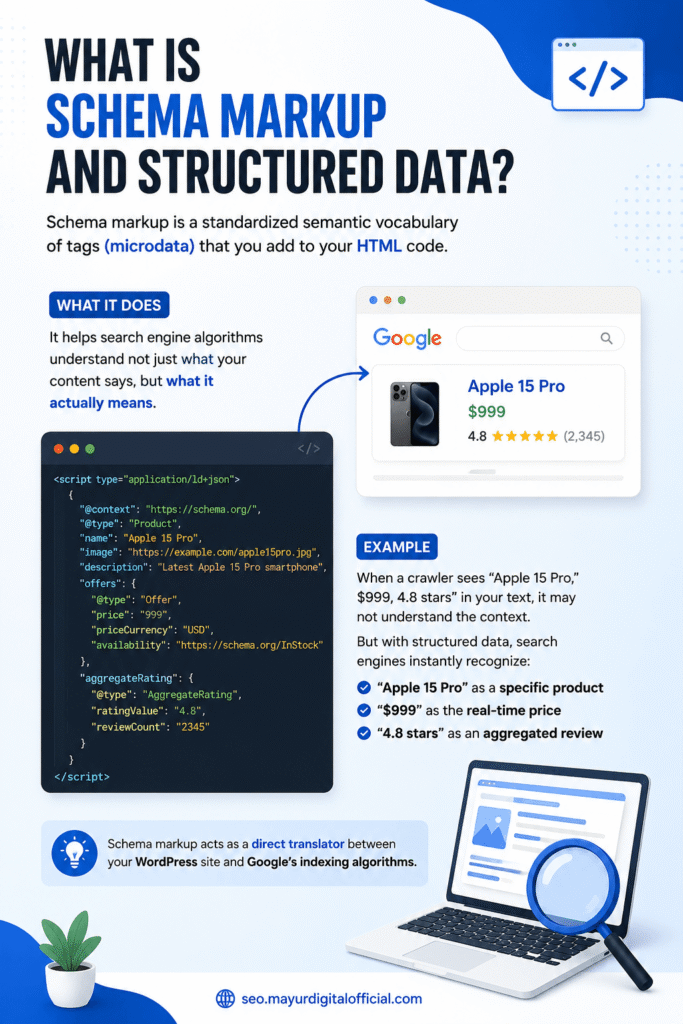
Schema markup is a standardized semantic vocabulary of tags (microdata) that you add to your website’s HTML code. Developed collaboratively by Google, Bing, Yahoo, and Yandex through Schema.org, this code tells search engine algorithms not just what your content says, but what it actually means.
For instance, when a standard crawler encounters the phrase “Apple 15 Pro, $999, 4.8 stars,” it sees plain text. However, when structured data is implemented, search engines instantly recognize “Apple 15 Pro” as a specific product, “$999” as its real-time price, and “4.8 stars” as an aggregated user review rating.
When you understand this schema markup guide for beginners, you realize that structured data serves as a direct translator between your WordPress site and Google’s indexing algorithms.
What is Schema Markup?
Search engines do not read web pages the way humans do. While you see formatted paragraphs, product pictures, and reviews, search crawlers only see raw strings of text and code.
Think of schema markup as a direct translator for search engine bots. In the world of technical SEO, this system is formally referred to as structured data. It uses a universal, standardized vocabulary that tells search engines exactly what each piece of information represents on your site, eliminating the guesswork.
Here is an everyday analogy: imagine handing someone an unlabeled jar filled with white powder. It might be sugar, salt, or flour. Schema acts as the clear label stuck to the front reading: “Pure Cane Sugar.”
On your WordPress site, it confirms whether a random number represents a product price, an event date, or a phone number.
This exact clarity is what powers visual search upgrades known as rich snippets. By helping algorithms understand your content contextually, your listings can earn review stars, FAQ dropdowns, and recipe cards that grab attention and drive clicks
Why It Matters for CTR (Click-Through Rate)
Let’s be real: adding structured code will not magically shoot thin, low-quality content straight to the number one spot on Google.
What it actually does is far more practical—it turns flat search results into high-converting visual assets.
As covered in this schema markup guide for beginners, the real power lies in qualifying your pages for Rich Snippets. Instead of appearing as an ordinary blue link, your listing stands out directly inside the SERPs:
- Dominate SERP Real Estate: Visual enhancements like accordion FAQ dropdowns physically expand the height of your snippet, pushing competitors down the screen.
- Build Instant Trust: Displaying verified star ratings, review counts, or product pricing gives searchers immediate answers before they even open the link.
- Steal Clicks from Higher Rankings: An eye-catching result sitting at position #3 with rich visuals routinely pulls more clicks than a boring text link sitting at position #1.
You can pull a massive surge of organic traffic purely by capturing the clicks already searching for your topic—without needing an immediate bump in keyword rankings.
Schema Markup Guide for Beginners: The Common Types You Actually Need
You don’t need to memorize hundreds of confusing tags on Schema.org to get real results. For standard blogs and service websites, focusing on a few core formats covers almost everything you will encounter.
When you learn how to use rank math schema, managing these formats becomes a quick, point-and-click routine. The most impactful formats include:
- Article / BlogPosting Schema: The everyday baseline for blog posts and news updates. It helps Google immediately parse your headline, publish date, author, and featured image.
- FAQ Schema: One of the fastest ways to expand your presence in search results. If you run a WordPress site, setting up faq schema markup wordpress allows your Q&A sections to show up as clean dropdowns directly below your listing.
- Product & Review Schema: Essential for affiliate reviews and online stores, showing pricing, in-stock status, and yellow star ratings directly in search snippets.
- How-To & Recipe Schema: Built specifically for step-by-step guides, highlighting required tools, prep steps, or completion times right on the search page.
Mastering these core options gives you maximum impact without overcomplicating your workflow.
How to Use Rank Math Schema (The Easiest No-Code Method)
If you have been wondering how to add schema markup in wordpress without touching confusing code, this workflow is the cleanest answer. The free version of Rank Math includes a built-in generator that writes clean JSON-LD script quietly in the background.
Following this hands-on schema markup guide for beginners will save you hours of trial and error:
Step 1: Enable the Schema Module
- Head over to your WordPress admin dashboard.
- Go to Rank Math SEO > Dashboard.
- Find the Schema (Structured Data) module card and toggle it ON.
Step 2: Set Your Global Defaults
- Navigate to Rank Math SEO > Titles & Meta.
- Click the Posts tab.
- Scroll to Schema Type and select Article (set the subtype to Blog Post).
- Save your settings. Every new article you publish will instantly inherit baseline markup, eliminating tedious repetitive setups.
Step 3: Configure In-Post Rich Data
- Open any blog draft inside the WordPress block editor.
- Click the red or green Rank Math SEO badge in the upper-right corner.
- Switch over to the dedicated Schema tab.
- Click Schema Generator and select your preferred layout—like Review, Recipe, or Course. Fill in your basic details and save.
Before hitting publish, make sure you know how to test schema markup using validation tools so you catch any missing required properties early.
How to Add FAQ Schema Markup in WordPress (Step-by-Step)
If you are learning how to add schema markup in wordpress, adding question-and-answer snippets is by far one of the fastest wins you can score. It commands serious visual real estate on Google and answers user queries before they even click.
Setting up faq schema markup wordpress takes less than two minutes if you use the native block editor:
Using the Rank Math Gutenberg Block
- Open the post editor where you want to include your Q&A section.
- Click the
+(Add block) icon in the content area. - Search for Rank Math FAQ and click to insert the dedicated block.
- Type your questions and answers directly into the visual input fields.
- Hit Update.
That is all it takes. While human readers see a clean, styled accordion on the front end, the plugin quietly injects valid, error-free FAQPage JSON-LD code straight into your page header.
Pro Tip: Keep your questions practical. Limit your section to 3 or 4 high-intent questions that searchers genuinely type into Google. Avoid jamming twenty repetitive queries into a single article, as this can trigger search engine spam filters.
How to Test Schema Markup (Verify If It Actually Works)
Never assume your markup is operating smoothly just because a plugin says it is saved. Search engines completely ignore broken code, meaning you could do all the work and still get zero visual enhancements in search results.
Once you know how to test schema markup, auditing your pages takes under sixty seconds:
1. Google Rich Results Test
- Head over to the official Google Rich Results Test (
[search.google.com/test/rich-results](https://search.google.com/test/rich-results)). - Paste your published post URL into the search bar and hit Test URL.
- Review the report. You want to see clear green checkmarks showing valid items like Article or FAQ. If you see red warnings, click the dropdown to identify missing fields like image dimensions or author URLs.
2. Schema.org Validator
- For a strict code-level evaluation, drop your URL into the Schema Markup Validator (
validator.schema.org). - This tool confirms your raw JSON-LD matches universal web standards with zero syntax errors.
Common Schema Mistakes to Avoid
Even seasoned marketers slip up when figuring out how to add schema markup in wordpress. Keep an eye out for these frequent blunders:
- Spammy or Irrelevant FAQs: Forcing irrelevant questions into an article just to show up on SERPs will backfire. Search algorithms quickly suppress misleading snippets.
- Duplicate Plugin Clashes: Setting up how to use rank math schema while still running legacy tools like Yoast or All in One SEO will output conflicting scripts. Always stick to one active schema solution across your site.
- Faking Star Ratings: Manually hardcoding five-star review snippets on posts without genuine user ratings violates Google’s core spam policies and can trigger manual penalties.
Frequently Asked Questions
1. Does schema markup directly increase Google rankings?
No. It earns you rich snippets that increase clicks (CTR), which indirectly helps your rankings over time.
2. Can I use multiple schemas on one post?
No. It earns you rich snippets that increase clicks (CTR), which indirectly helps your rankings over time.
3. Do I need coding skills to set this up?
Not at all. Once you know how to use rank math schema, the plugin handles all JSON-LD code visually.
4. How long does Google take to show rich snippets?
Usually between a few days to two weeks, depending on how quickly Google recrawls and indexes your updated URL.
5. Why do testing tools show schema errors?
Most errors come from missing fields like author name or featured images. Testing tools point out the exact field to fix.
Start Winning Clicks Without Paying a Developer
Learning how to add schema markup in wordpress sounds intimidating until you realize modern tools do all the heavy lifting for you. You don’t need an expensive agency retainer or hundreds of dollars spent on custom scripts just to win visual real estate on Google.
With free tools, setting up structured data across your entire site takes less than an afternoon. That simple move helps your pages pull higher click-through rates, edge out competing links, and build instant organic credibility without touching a line of code.
Take five minutes right now to audit your top-performing post. Use this schema markup guide for beginners to plug in your first block, test it, and watch your search presence transform. If you want to see how these setups look out in the wild, check out our live styling guides next.